ப்ராடக்ட் ஸ்டாக் மேலாண்மை
இந்த வழிகாட்டி, ஸ்டாஃப் செயலி மூலம் இன்வென்டரியில் உள்ள ப்ராடக்ட்களின் ஸ்டாக்கை எவ்வாறு நிர்வகிக்கலாம் என்பதை விளக்குகிறது.
தொடங்குவதற்கு முன்
- இன்வென்டரி திருத்த அனுமதி (Edit access) கொண்ட ஸ்டாஃப் செயலி டெர்மினலில் உள்நுழைந்திருக்க வேண்டும்
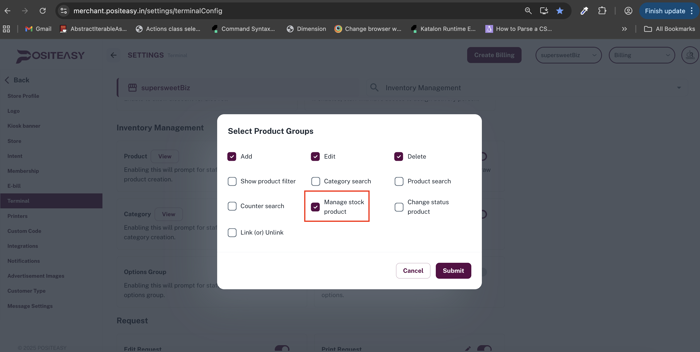
- மெர்சண்ட் செயலி → Terminal Settings பகுதியில் Manage Stock Product அமைப்பு செயல்படுத்தப்பட்டிருக்க வேண்டும்
caution
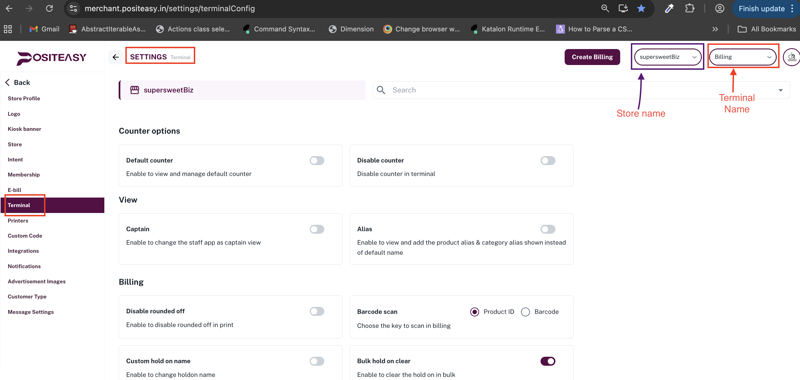
மெர்சண்ட் செயலியில் டெர்மினல் அமைப்புகளை மாற்றும் போது, சரியான டெர்மினல் தேர்வு செய்யப்பட்டுள்ளதா என்பதை உறுதி செய்ய வேண்டும்.
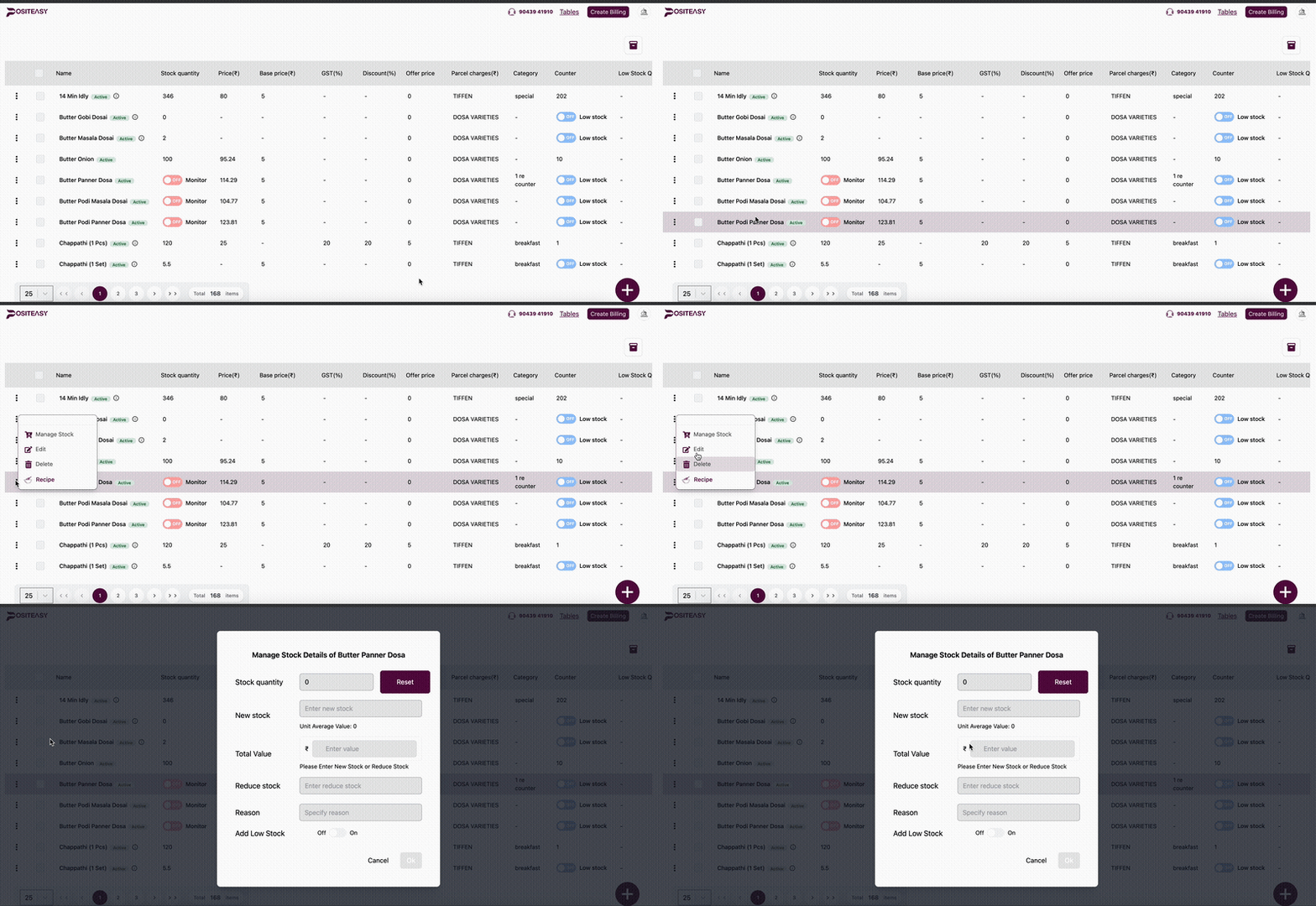
- ஸ்டாக் நிர்வகிக்க, அந்த ப்ராடக்டிற்கான Stock Monitor முன்கூட்டியே செயல்படுத்தப்பட்டிருக்க வேண்டும்
படி 1: இன்வென்டரி மாட்யூலை திறத்தல்
- ஸ்டாஃப் செயலி → ப்ரொஃபைல் ஐகான் → இன்வென்டரி (inventory) → ப்ராடக்ட்ஸ் (products) தேர்வு செய்யவும்.
படி 2: விரைவு ஸ்டாக் புதுப்பிப்பு
உடனடி ஸ்டாக் மாற்றம் செய்ய:
- ப்ராடக்ட் வரியில் உள்ள கெபாப் மெனு (⋮) தேர்வு செய்யவும் → Manage Stocks
- Stock Monitor OFF இருந்தால் ON செய்யவும்
- புதிய ஸ்டாக் அளவு உள்ளிடவும்
- (விருப்பத்தேர்வு) மொத்த மதிப்பு உள்ளிடினால், சராசரி மதிப்பு தானாக கணக்கிடப்படும்
- OK தேர்வு செய்யவும்
படி 3: ஸ்டாக் குறைத்தல் அல்லது மீட்டமைத்தல்
- உங்கள் ஸ்டாக் (Stock) முழுவதையும் பூஜ்ஜியமாக்க (விற்றுத் தீர்ந்துவிட்டது என மாற்ற), Reset பொத்தானைக் கிளிக் செய்யவும்.
- குறிப்பிட்ட அளவு குறைக்க:
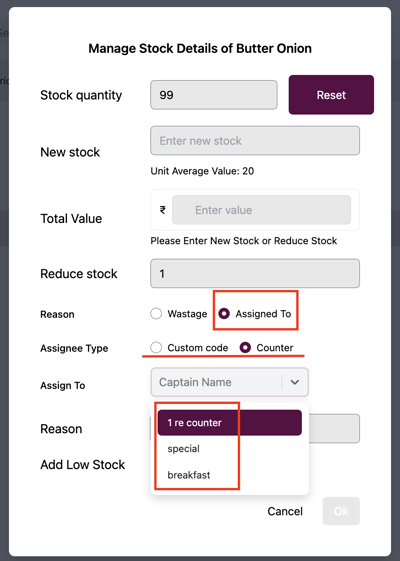
- Reduce Stock Quantity உள்ளிடவும்
- குறைப்பதற்கான காரணம் தேர்வு செய்யவும்
Wastage
- சேதம் / வீணாக்கம் காரணமாக
- Wastage Reports-ல் பதிவு செய்யப்படும்
Assigned To
- Custom Code அல்லது Counter அடிப்படையில்
- பட்டியலில் இருந்து சரியான விருப்பம் தேர்வு செய்யவும்
படி 4: லோ ஸ்டாக் அளவு (விருப்பத்தேர்வு)
- Low Stock Quantity அளவை உள்ளிடவும்
- அந்த அளவிற்கு ஸ்டாக் வந்தவுடன், மெர்சண்ட் கணக்கிற்கு Alert Notification வழங்கப்படும்
இந்த அமைப்புகள் மூலம், ப்ராடக்ட் ஸ்டாக் துல்லியமாக, கண்காணிக்கக்கூடிய வகையில், மற்றும் ஒழுங்காக நிர்வகிக்க முடியும்.